Setup · 02 · Reference
Part 1 of 2
- 1 · Moving around
- 2 · Files and folders
Solid foundation in the command line
I thought Terminal was only for sysadmins — then C forced me to learn it. Open it, see the file tree, and walk around with pwd, ls, and cd.
11th June 2019
Last updated on 23rd August 2026
Author: Kulwinder Krishan
I used to think the command line was something only grey-bearded sysadmins needed. Then I started learning C properly — and every tutorial assumed I could open a Terminal, find a folder, and type without panic. The mouse suddenly felt like a toy.
Early computers were almost nothing but text: you typed, the machine answered. We still have that conversation. On a Mac it lives in an app called Terminal. Clicking through Finder is fine for everyday work; Terminal is how you ask the machine for something precise — compile this file, list every hidden folder, go there and nowhere else.
This is part 1 of 2. Here we open Terminal, look at how files are arranged, and learn to move around. Part 2 is where we create and remove things — carefully.
Why this matters
If you are learning C on this site, Terminal is not optional flavour. It is how you will compile programs, run them, and dig when something breaks. The commands below have survived about forty years of fashion in computing. Learn them once; they stay useful.
Windows folk can follow the same ideas with Windows Terminal or WSL. I work on macOS here — same POSIX family as Linux — because that is what I use to teach myself C.
A few words you will hear
People throw these around in conversation. You do not need to memorise a glossary; you just need to recognise them when they appear.
The Terminal is the window. Inside it, a shell (on a modern Mac usually zsh) reads what you type. The blinking line waiting for you is the prompt. What you type before Return is a command. Folders are almost always called directories in this world.
Opening Terminal
On macOS, Terminal is already installed. Open it from Launchpad, or hit ⌘ + Space, type Terminal, and press Return. You should land in your home directory — your personal corner of the disk.
How the disk is organised
Think of the file system as a tree. At the top sits root, written /. Everything else hangs underneath — applications, users, libraries — in parent and child directories.
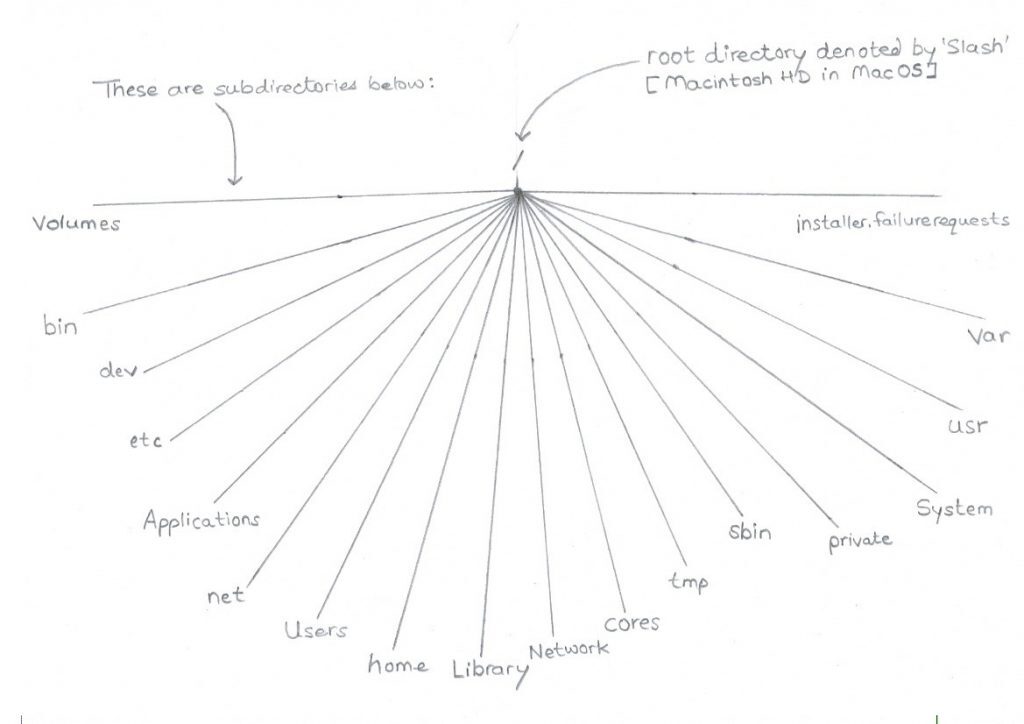
A simplified map of the macOS tree — not every folder, just the idea
You have already seen this tree in Finder. Some system folders look faded because they are hidden. In the shell, hidden names simply start with a dot (.).
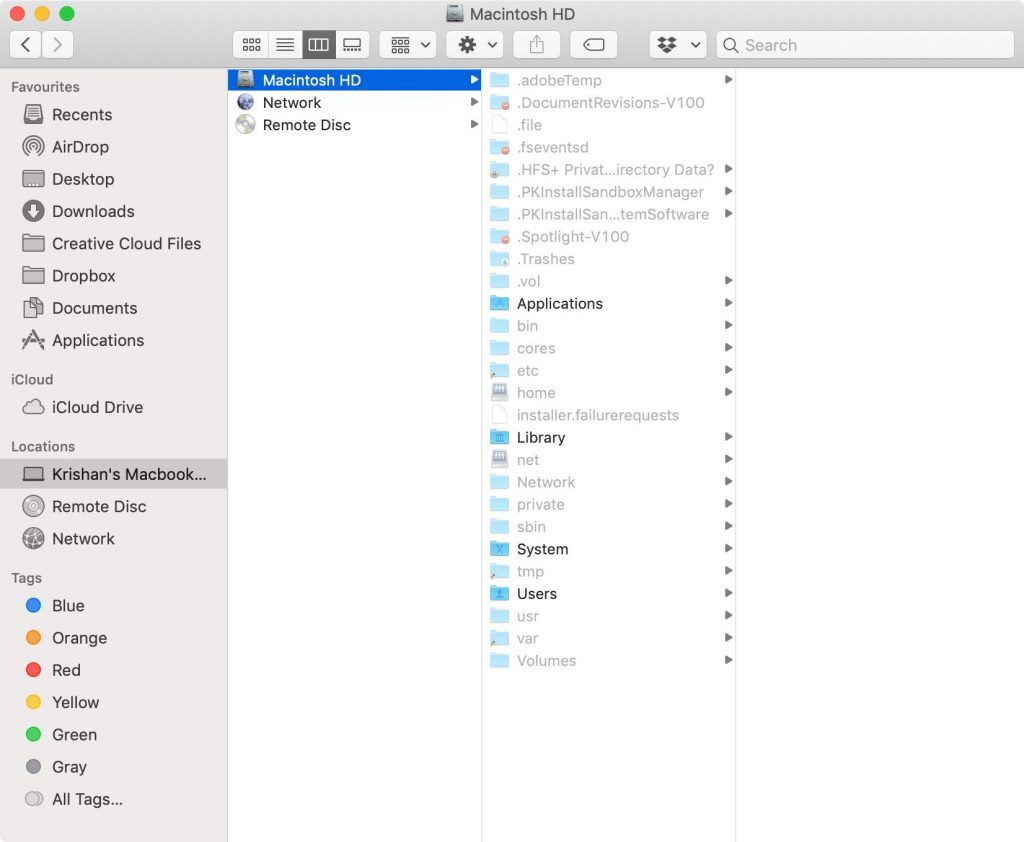
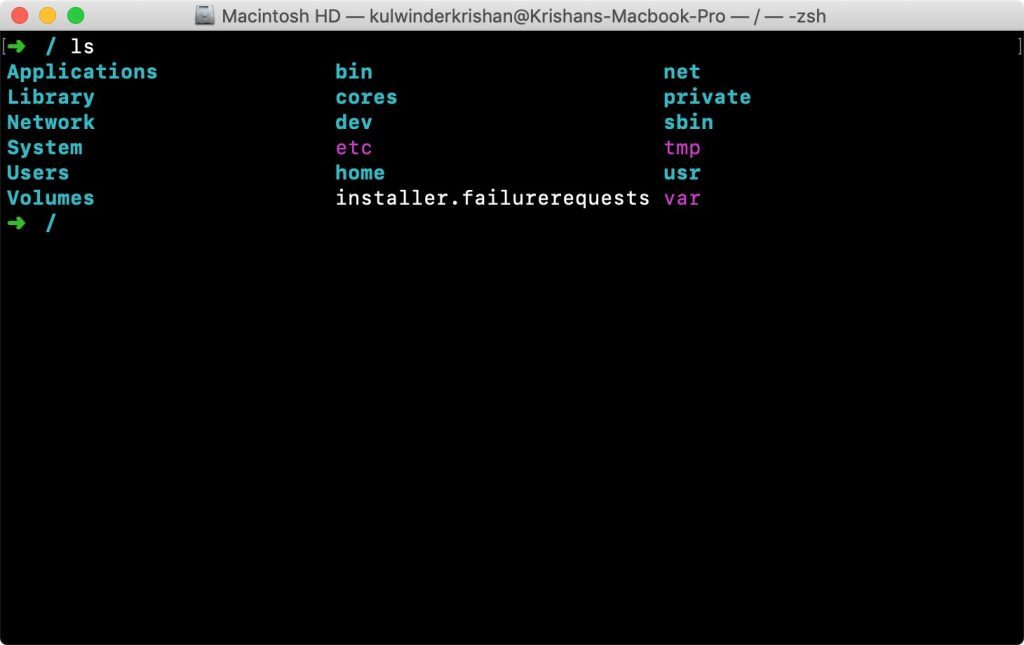
Same place, three views: diagram, Finder, Terminal
Walking around
One habit to lock in early: on macOS and Linux, names are case-sensitive. Desktop and desktop are not the same place.
When I am lost, I ask three questions: Where am I? What is here? How do I go somewhere else?
pwd
Prints the current working directory — the folder the shell thinks you are standing in. Fresh Terminal sessions usually start at home (~).
ls
Lists what is in a directory. On its own, it lists here:
You can point it elsewhere without moving — an absolute path from root:
Or a relative path: . means this directory, .. means the parent.
You can even list several places in one breath:
Flags like -la are in part 2.
cd
Change directory — the shell’s double-click. Watch the prompt update if it shows where you are:
Type cd alone and press Return — you are home again, from anywhere on the machine.
clear
The window fills with old output. Type clear (or press ⌘ + K on a Mac) so you can start at the top of the terminal screen again.
Addresses: absolute and relative
A pathname is simply the route to a place — how you tell the shell which Desktop, which project folder.
An absolute path always starts at / and walks the whole tree. When pwd prints a path, that is absolute: you can paste it into cd from anywhere and arrive.
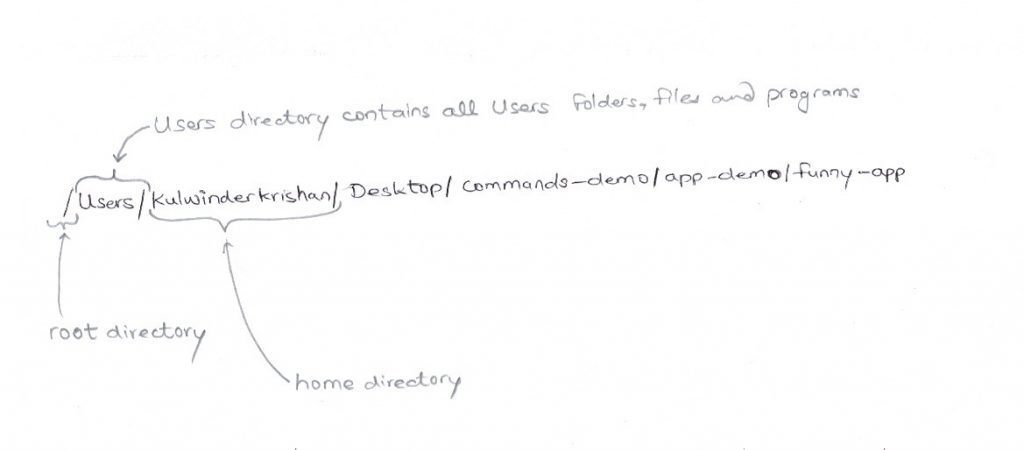
Reading an absolute path left to right, from root outward
A relative path starts from where you already are. That is why .. is so useful — one step toward the parent — and why ./Desktop is usually just Desktop when you are already in the right parent.
Next
You can open Terminal, see the tree, and traverse it. That is enough to stop feeling lost.
Next we build a little sandbox and practise the commands that change things — create, copy, move, delete — in a folder we can throw away.
Earlier comments(2)
Tremendous things here. I'm verʏ satisfіed to look your article. Thank you a lot and I'm taking a look forward to touch you. Will you kindly drop me a e-mail?
Excellent website, loaded with helpful information; I'm forwarding it to a few acquaintances and also sharing it on Delicious. Clearly, your efforts are rewarded.
Leave a comment
Comments coming soon — set the NEXT_PUBLIC_GISCUS_* env vars after enabling GitHub Discussions and Giscus.