Setup · 03 · Reference
Part 2 of 2
- 1 · Moving around
- 2 · Files and folders
Command line: files and folders
Make a sandbox first, then practise mkdir, cp, mv, and rm so a mistake cannot touch the files you care about.
11th June 2019
Last updated on 23rd August 2026
Author: Kulwinder Krishan
Part 1 taught you to open Terminal and move around the file tree. This part is about changing what is on the disk — carefully — so you do not damage anything important.
I used to call these acidic commands: useful, powerful, and unforgiving if you wave them around the wrong folder.
So before anything else: make a playground. On the Desktop, create a folder called sandbox (we will do that with the shell in a moment). Work only inside it until these commands feel boring. Do not practise as an experiment under /. The operating system will not lecture you politely.
Options and arguments
Every useful command has options and arguments — little switches that change its behaviour. You will not remember them all. Nobody does.
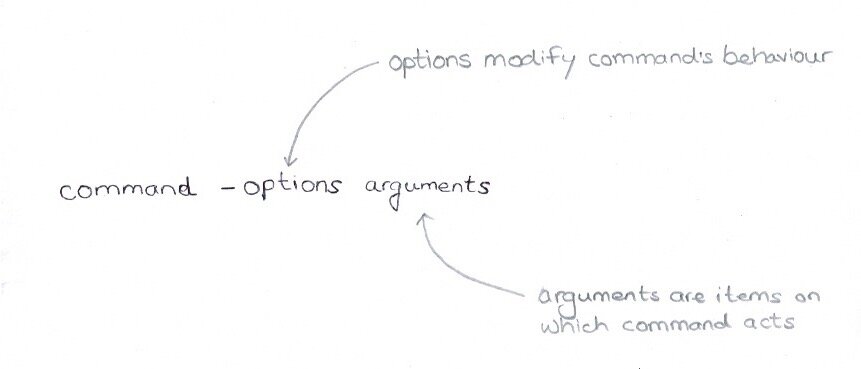
The shape of a command: name, then options, then what it acts on
man
When you forget, ask the machine itself. man opens the manual page for a command — dry, a bit cryptic, and available offline without hunting the web.
Those pages open in a pager called less. Return moves a line, Space a page, q quits. Type h inside less if you want the cheat sheet.
less
The same tool reads ordinary text files:
I will even attempt non-text files if you insist — useful once, messy often:
ls
Back in part 1, ls showed names of the files and folders. Add options and it tells a richer story: -l for a long listing, -a to include hidden (dot) names, -la for both.
Building the sandbox
I always start a session like this in a throwaway folder.
mkdir
Makes a directory — the shell’s New Folder.
You can create several in one go when you are laying out a little project shape:
touch
Creates an empty file (or updates the timestamp on one that already exists). Add an extension (.c, .txt, .html) when you care which app macOS offers on open — without one, the system has little to go on.
open
On a Mac, open hands a file or folder to the default GUI app — handy when you want to peek without leaving the keyboard entirely:
(Editors that live inside the terminal — nano, vim, emacs — are a later adventure.)
Copying
cp
Duplicates. The exact meaning depends on whether the destination already exists — and whether you are copying a file or a whole directory.
Copy into a new name (destination free):
Copy onto an existing file — it overwrites, quietly, with no Finder-style “are you sure?”:
Drop a file into a directory:
Several files into a directory:
Directories need -r (recursive). Destination missing → a new folder appears with the contents. Destination already there → the source folds into it.
Moving and renaming
mv
Same source-then-destination pattern as cp, but the original does not stay behind. That is how you rename: move file1 to a name that does not exist yet.
If both names exist, you overwrite — again, without drama from the shell:
The same ideas apply to directories. Move one or many items into a folder by listing the destination last:
Deleting
rm
The one that earns the “acid” nickname. It removes files for real. There is usually no Trash, no Undo, no second chance — even if you named the file important-system-file.txt
Empty directories need -d. Directories with contents need recursion as well — and that is where a mistyped path hurts.
When in doubt, stop. Read man rm. Then read it again. The sandbox is there so mistakes stay small.
Next
You can navigate, build a playground, and tidy up after yourself. That is enough command line to support learning C.
Next we put a compiler on the Mac:
Leave a comment
Comments coming soon — set the NEXT_PUBLIC_GISCUS_* env vars after enabling GitHub Discussions and Giscus.